
Category: Technology

Programming, gadgets (reviews thereof) and computers

Computational Photography

Lightfielddemo

Lytro, Inc, a technology spin-off company founded by Ren Ng, have been in the news recently with their announcement of a re-focusable camera: take one “image”, and change where the focal plane lies after the fact. This is illustrated in the images above, generated from a single shot from the prototype camera. As you move from left to right across this sequence you can see the focus shifting from the front left of image to back right.I saw this work a few years ago at the mighty SIGGRAPH conference, it comes out of a relatively new field of “computational photography”.

All photography is computational to a degree. In the past the computation was done using lenses and chemicals, different chemical mixes and processing times led to different colour effects in the final image. Nowadays we can do things digitally, or in new combinations of physical and digital.

These days your digital camera will already be doing significant computation on any image. The CCD sensor in a camera is fundamentally a photon-counting device – it doesn’t know anything about colour. Colour is obtained by putting a Bayer mask over the sensor, a cunning array of red, green and blue filters. It requires computation to unravel the effect of this filter array to make a colour image. Your camera will also make a white balance correction to take account of lighting colour. Finally, the manufacturer may apply image sharpening and colour enhancement, since colour is a remarkably complex thing there are a range of choices about how to present measured colours. These days compact cameras often come with face recognition, a further level of computation.

The Lytro system works by placing a microlens array in the optical train, the prototype device (described here) used a 296×296 array of lenses focusing onto a 16 million pixel medium format CCD chip, just short 40mmx40mm in size. The array of microlenses means means that for each pixel on the sensor you can work out the direction in which it was travelling, rather than just where it landed. For this reason this type of photography is sometimes called 4D or light-field photography. The 4 dimensions are the 2 dimensions locating where on the sensor the photon lands, and the direction in which it travels, described by another two dimensions. Once you have this truckload of data you can start doing neat tricks, such as changing the aperture and focal position of the displayed image, you can even shift the image viewpoint.

As well as refocusing there are also potentially benefits in being able to take images before accurate autofocus is achieved and then using computation to recover a focused image.

The work leading to Lytro was done by Ren Ng in Marc Levoy’s group at Stanford, home of the Stanford Multi-Camera Array: dispense with all that fiddly microlens stuff: just strap together 100 separate digital video cameras! This area can also result in terrible things being done to innocent cameras, for example in this work on deblurring images by fluttering the shutter, half a camera has been hacked off! Those involved have recognized this propensity and created the FrankenCamera.

Another example of computational photography is in high dynamic range imaging, normal digital images are acquired in a limited dynamic range: the ratio of the brightest thing they can show to the darkest thing they can show in a single image. The way around this is to take multiple images with different exposures and then combine together. This seems to lead, rather often, to some rather “over cooked” shots. However, this is a function of taste, fundamentally there is nothing wrong with this technique. The reason that such processing occurs is that although we can capture very high dynamic range images, displaying them is tricky so we have to look for techniques to squish the range down for viewing. There’s more on high dynamic range imaging here on the Cambridge in Colour website, which I recommend for good descriptions of all manner of things relating to photography.

I’m not sure whether the Lytro camera will be a commercial success. Users of mass market cameras are not typically using the type of depth-of-field effect shown at the top of the post (and repeated ad nauseum on the Lytro website). However, the system does offer other benefits, and it may be that ultimately it ends up in cameras without us really being aware of it. It’s possible Lytro will never make a camera, but instead license the technology to the big players like Canon, Panasonic or Nikon. As it stands we are part way through the journey from research demo to product.
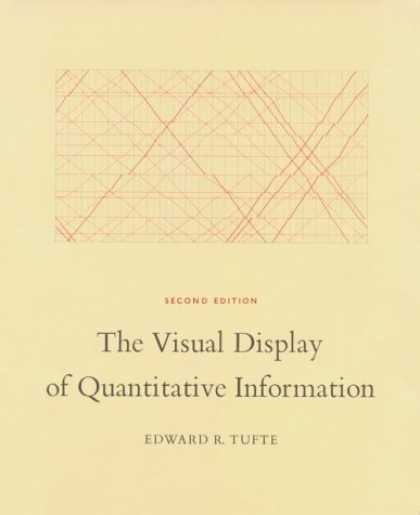
Book Review: The Visual Display of Quantitative Information by Edward R. Tufte


tufte“The Visual Display of Quantitative Information” by Edward R. Tufte is a classic in the field of data graphics which I’ve been meaning to read for a while, largely because the useful presentation of data in graphic form is a core requirement for a scientist who works with experimental data. This is both for ones own edification, helping to explore data, and also to communicate with an audience.

There’s been something of a resurgence in quantitative data graphics recently with the Gapminder project led by Hans Gosling, and the work of David McCandless and Nathan Yau at FlowingData.


The book itself is quite short but beautifully produced. It starts with a little history on the “data graphic”, by “data graphic” Tufte specifically means a drawing that is intended to transmit data about quantitative information in contrast to a diagram which might be used to illustrate a method or facilitate a calculation. On this definition data graphics developed surprisingly late, during the 18th century. Tufte cites in particular work by William Playfair, who was an engineer and political economist who is credited with the invention of line chart, bar chart and pie chart which he used to illustrate economic data. There appears to have been a fitful appearance of what might have been a data graphic in the 10th century but to be honest it more has the air of a schematic diagram.

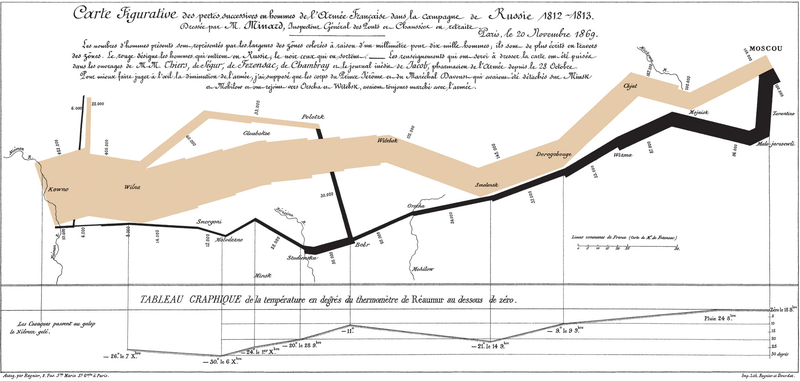
Also referenced are the data maps of Charles Joseph Minard, the example below shows the losses suffered by Napoleon’s army in it’s 1812 Russian campaign. The tan line shows the army’s advance on Moscow, it’s width proportional to the number of men remaining. The black line shows their retreat from Moscow. Along the bottom is a graph showing the temperature of the cold Russian winter at dates along their return.

800px-MinardInterestingly adding data to maps happened before the advent of the more conventional x-y plot, for example in Edmund Halley’s map of 1686 showing trade winds and monsoons.

Next up is “graphic integrity”: how graphics can be deceptive, this effect is measured using a Lie Factor: the size of the effect shown in graphic divided by the size of the effect in data. Particularly heroic diagrams achieve Lie Factors as large as 59.4. Tufte attributes much of this not to malice but to the division of labour in a news office where graphic designers rather than the owners and explainers of the data are responsible for the design of graphics and tend to go for the aesthetically pleasing designs rather than quantitatively accurate design.


Tufte then introduces his core rules, based around the idea of data-ink – that proportion of the ink on a page which is concerned directly with showing quantitative data:

  • Above all else show the data
  • Maximize the data-ink ratio
  • Erase non-data-ink
  • Erase redundant date-ink
  • Revise and edit.

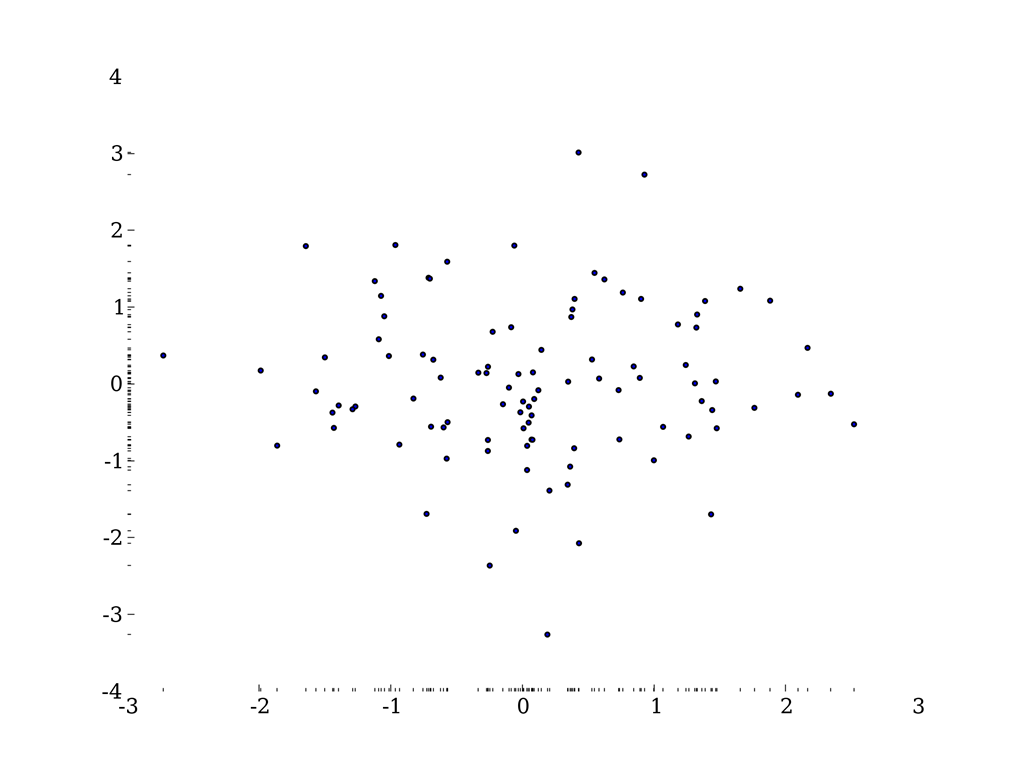
A result of this is that some of the elements of graph which you might consider essential, such as the plot axes, are cast aside and replaced by alternatives. For example the dash-dot plot where instead of solid axes dashes are used which show a 1-D projection of the data:

ddp

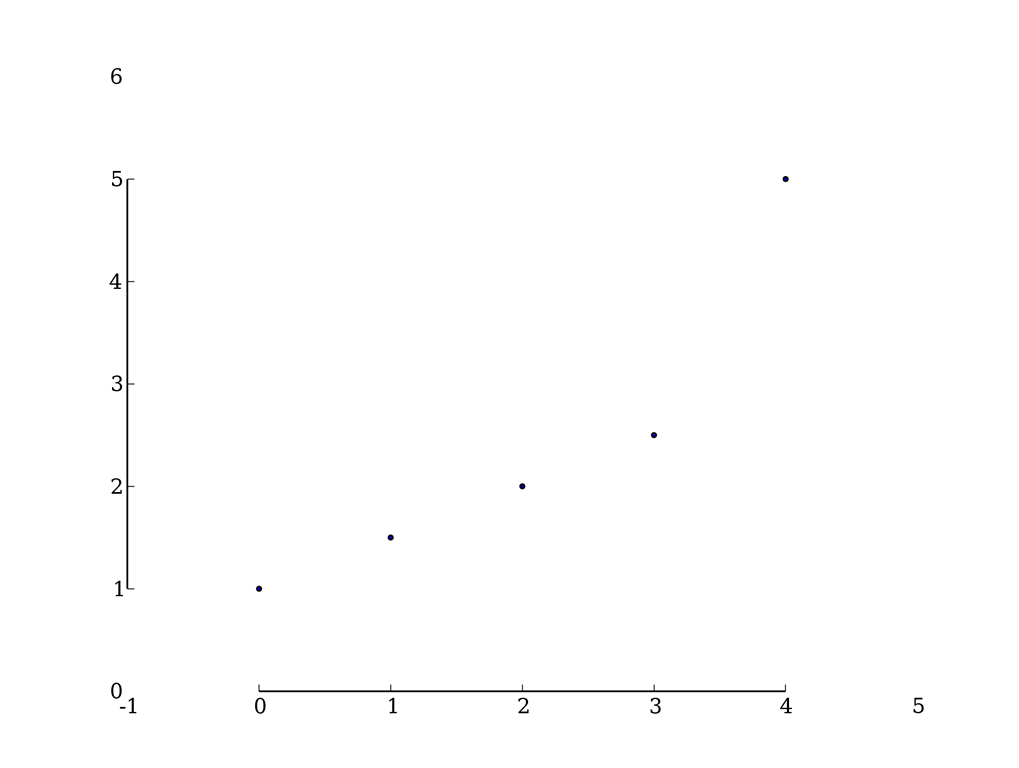
Or the range-frame plot where the axes are truncated at the limits of the data, actually to be fully Tufte the axes labels would be made at the ends of the data range, not to some rounded figure:

range

Both of these are examples are from Adam Hupp’s etframe library for Python. Another route to making Tufte-approved data graphics is by using the Protovis library which was designed very specifically with Tufte’s ideas in mind.

Tufte describes non-data-ink as “chartjunk”, several things attract his ire – in particular the moiré effect achieved by patterns of closely spaced lines used for filling areas, neither is he fond of gridlines except of the lightest sort. He doesn’t hold with colour or patterning in graphics, preferring shades of grey throughout. His argument against colour is that there is no “natural” sequence of colours which link to quantitative values.

What’s striking is that the styles recommended by Tufte are difficult to achieve with standard Office software, and even for the more advanced graphing software I use the results he seeks are not the out-of-the-box defaults and take a fair bit of arcane fiddling to reach.  Not only this, some of his advice contradicts the instructions of learned journals on the production of graphics.

Two further introductions I liked were Chernoff faces which use the human ability to discriminate faces to load a graph with meaning, and sparklines – tiny inline graphics showing how a variable varies in time without any of the usual graphing accoutrements: – in this case one I borrowed from Joe Gregorio’s BitWorking.

In the end Tufte has given me some interesting ideas on how to present data, in practice I fear his style is a little too austere for my taste.There’s a quote attributed to Blaise Pascal:

I would have written a shorter letter, but I did not have the time.

I suspect the same is true of data graphics.

Footnote

Mrs SomeBeans has been referring to Tufte as Tufty, who UK readers of a certain age will remember well.

How do I setup my own website?

A post in the style of random notes today: I’ve been making a new website for The Inelegant Gardener – there’s a teaser here, I’ve done this before for the Chester Liberal Democrats. I thought it might be handy to provide a compact description of the process as a reminder to me and a warning to others…

The steps are as follows:

  1. Getting a domain name
  2. Finding a web host
  3. Making your website
  4. Going live

1. Getting a domain name

The domain name is the www bit. You can put your domain name registration with your web host but conventional wisdom is that it’s better to separate the two. I chose http://www.just-the-name.co.uk/ based on a twitter recommendation. Once you’ve chosen your domain name, you get access to a simple control panel which can be used to redirect your domain name to another site (such as this one), set up e-mail redirection and so forth. Mine gives me access to DNS Settings but I left these alone. When the time comes you’ll need to set the names servers to those provided by your web host.

2. Finding a web host

A web host is where your website will live. In the end I settled with EvoHosting for a few of reasons: they have live status updates for their servers, they have a twitter account and mentions of evohosting on twitter do not reveal any frustrated users, a search for the term “evohosting is crap” reveals no worrying hits in Google! They’re also reassuring slightly more expensive than the cheapest hosting solutions which seem to suffer from the “X is crap” syndrome. I selected a scheme that allows me to host several sites.

3. Making your website

You can make a website using WordPress – the blogging software. Building a website is a question of managing content – and for a small site WordPress does this nicely and is free. You don’t have to be blogging to use it – you can just make a set of static pages. I understand that for bigger sites Joomla is good. WordPress is a combination of a PHP application talking to a SQL database. I found a passing familiarity with SQL databases quite handy, not so much to write queries but just to know the basics of accounts and tables.

WordPress handles the mechanics of your website, what goes where, posting and making pages whilst the “theme” determines appearance. I’ve used the Atahualpa theme for my two websites so far – it’s pretty flexible, although if you want to put anything top-right in the logo area I’d find a good reason not to – I’ve spent days trying to do it to my satisfaction! For debugging your own website and snooping into others the developer tools available on all major browsers are very handy. I use Google Chrome, for which the Window Resizer and MeasureIt extensions are useful. Window Resizer allows you to test your site at different screen sizes, and MeasureIt measures the size in pixels of screen elements.

I’ve found Paint .NET useful for wrangling images, it’s either the old Windows Paint program on steroids or a very limited Photoshop.

For my efforts I have created the website locally, on my own PC, before transferring it to web hosting. I’m not sure if this is standard practice but it seemed a better idea than potentially thrashing around in public as you learnt to build your website. To do this I installed xampplite, this gives my PC web serving capabilities and provides everything needed to run WordPress –except WordPress which you need to download separately.

WordPress can be extended by plugins, and I’ve found I can achieve most the functionality I’ve wanted by searching out the appropriate plugin. Here are a few I’m using:

  1. Contact Form 7 – to create forms
  2. Drop cap shortcode – to easily add drop caps (big letters) to posts and pages.
  3. Dynamic Widgets – to put different widgets on different pages
  4. NextGEN Gallery – more advanced photo gallery software
  5. Simple Page Ordering – allows you to shuffle the order pages appear in your static menus, which is a bit tricky in basic WordPress
  6. WP-dtree – a dynamic tree structure for showing the blog archive, as found in Blogger.
  7. WP Maintenance Mode – for hiding your site whilst you’re fiddling with it!
  8. WordPress Mobile Pack – a switcher for making your blog more readable if someone arrives using a mobile browser

Since WordPress is a very heavily used platform there’s a lot of help around, you identify WordPress sites by looking in the site footer, or viewing the page source (WordPress sites tend to have references to files starting “wp-“)

4. Going live

I must admit I find the process of moving a site from my own machine to a web server the most complicated bit of the process – you can see the instructions on the WordPress site here. The basic idea is to change the base URL for your website to the target address then copy the pages (zipped them all up before upload) and the database (using phpmyadmin import/export) of the WordPress installation to the web host. If you want to keep your local copy running then you need to take a copy before changing the base URL and load it back up once you’ve done moving. Things that caught me out this time: I had to use MySQL to create a database into which to import the database, and it wasn’t enough to create a user, I also needed to attach it to the appropriate account, and I had to save the settings on the permalinks for pages to show up. Finally, I also had some typed links in my website, which needed manually adjusting (although you can do this automatically in MySQL).

I wish I knew a bit more CSS, my current technique for fine tuning appearance involves a lot of rather ignorant typing, a bit more knowledge of good graphic design wouldn’t go amiss either!

This is the way I did it – I’d be interested in any suggestions for improvements.

More news from the shed…

CWACResults2011

In the month of May I seem to find myself playing with maps and numbers.

To the uninvolved this may appear to be rather similar to my earlier “That’s nice dear”, however the technology involved here is quite different.

This post is about extracting the results from the local elections held on 5th May from the Cheshire West and Chester website and displaying them as a map. I could have manually transcribed the results from the website, this would probably be quicker, but where’s the fun in that?

The starting point for this exercise was noticing that the results pages have a little icon at the bottom saying “OpenElectionData”. This was part of an exercise to make local election results more easily machine-readable in order to build a database of results from across the country, somewhat surprisingly there is no public central record of local council election results. The technology used to provide machine access to the results is known as RDF (standing for Resource Description Framework), this is a way of providing “meaning” to web pages for machines to understand – this is related to the talk of the semantic web. The good folks at Southampton University have provided a browser which allows you to inspect the RDF contents of a webpage. I used this to get a human sight of the data I was trying to read.

RDF content ultimately amounts to triplets of information: “subject”,”predicate”,”object”. In the case of an election then one triplet has a subject of “specific ward identifier” the predicate is “a list of candidates” and the object is “candidate 1;candidate 2; candidate 3…”. Further triplets specify the whether a candidate was elected, how many votes they received and the party to which they belong.

I’ve taken to programming in Python recently, in particular using the Python(x,y) distribution which packages together an IDE with some libraries useful to scientists. This is the sort of thing I’d usually do with Matlab, but that costs (a lot) and I no longer have access to it at home.

There is a Python library for reading RDF data, called RDFlib, unfortunately most of the documentation is for version 2.4 and the working version which I downloaded is 3.0. Searching for documentation for the newer version normally leads to other sites where people are asking where the documentation is for version 3.0!

The base maps come from the Ordnance Survey, specifically the Boundary Line dataset which contains administrative boundary data for the UK in ESRI Shapefile format. This format is widely used for geographical information work, I found the PyShp library from GeospatialPython.com to be well-documented and straightforward way to read the format. The site also has some nice usage examples. I did look for a library to display the resulting maps but after a brief search I adapted the simple methods here for drawing maps using matlibplot.

The Ordnance Survey Open Data site is a treasure trove for programming cartophiles, along with maps of the UK of various types there’s a gazetteer of interesting places, topographic information and location data for UK postcode.

The map at the top of the page uses the traditional colour-coding of red for Labour and blue for Conservative, some wards elect multiple candidates and in those where the elected councillors are not all from the same party purple is used to show a Labour/Conservative combination and orange a Labour/Liberal Democrat combination.

In contrast to my earlier post on programming, the key elements here are the use of pre-existing libraries and data formats to achieve an end result. The RDF component of the exercise took quite a while, whilst the mapping part was the work of a couple of hours. This largely comes down to the quality of the documentation available. Python turns out to be a compact language to do this sort of work, it’s all done in 150 or so lines of code.

It would have been nice to have pointed my program to a single webpage and for it to find all the ward data from there, including the ward names, but I couldn’t work out how to do this – the program visits each ward in turn and I had to type in the ward names. The OpenElectionData site seemed to be a bit wobbly too, so I encoded party information into my program rather the pulling it from their site. Better fitting of the ward labels into the wards would have been nice too (although this is a hard problem). Obviously there’s a wide range of analysis that can be carried out on the underlying electoral data.

Footnotes

The python code to do this analysis is here. You will need to install the rdflib and PyShp libraries and download the OS Boundary Line data. I used the Python(x,y) distribution but I think it’s just the matlibplot library which is required. The CWac.py program extracts the results from the website and writes them to a CSV file, the Mapping.py program makes a map from them. You will need to adjust file paths to suit your installation.

Obsession

This is a short story about obsession: with a map, four books and some numbers.

My last blog post was on Ken Alder’s book “The Measure of All Things” on the surveying of the meridian across France, through Paris, in order to provide a definition for a new unit of measure, the metre, during the period of the French Revolution. Reading this book I noticed lots of place names being mentioned, and indeed the core of the whole process of surveying is turning up at places and measuring the angles to other places in a process of triangulation.

To me places imply maps, and whilst I was reading I popped a few of the places into Google Maps but this was unsatisfactory to me. Delambre and Mechain, the surveyors of the meridian, had been to many places. I wanted to see where they all were. Ken Alder has gone a little way towards this in providing a map: you can see it on his website but it’s an unsatisfying thing: very few of the places are named and you can’t zoom into it.

In my investigations for the last blog post, I discovered the full text of the report of the surveying mission, “Base du système métrique décimal”, was available online and flicking through it I found a table of all 115 triangles used in determining the meridian. So a plan is formed: enter the names of the stations forming the 115 triangles into a three column spreadsheet; determine the latitude and longitude of each of these stations using the Google Maps API; write these locations out into a KML file which can be viewed in Google Maps or Google Earth.

The problem is that place names are not unique and things have changed in the last 200 years. I have spent hours transcribing the tables and hunting down names of obscure places in rural France, hacking away with Python and loved every minute of it. Cassini’s earlier map of France is available online but the navigation is rather clumsy so I didn’t use it. Although now I come to writing this I see someone else has made a better job of it.

Beside three entries in the tables of triangles are the words: “Ce triangle est inutile” – “This triangle is useless”. Instantly I have a direct bond with Delambre, who wrote those words 200 years ago –  I know that feeling: in my loft is a sequence of about 20 lab books I used through my academic career and I know that besides an (unfortunately large) number of results the word “Bollocks!” is scrawled for very similar reasons.

The scheme with the the Google Maps API is that your program provides a place name “Chester, UK”, for example, and the API provides you with the latitude and longitude of the point requested. Sometimes this doesn’t work, either because there are several places with the same name or the placename is not in the database.

I did have a genuine Eureka moment: after several hours trying to find missing places on the map I had a bath and whilst there I had an idea: Google Earth supports overlay images on its maps. At the back of the “Base du système métrique décimal” there is a set of images showing where the stations are as a set of simple line diagrams. Surely I could overlay the images from Base onto Google Earth and find the missing stations? I didn’t leap straight from the bath, but I did stay up overlaying images onto maps deep into the night. It turns out the diagrams are not at all bad for finding missing stations. This manual fiddling to sort out errant stations is intellectually unsatisfying but some things it’s just quicker to do by hand!

You can see the results of my fiddling by loading this KML file into Google Earth, if you’re really keen this is a zip file containing the image overlays from “Base du système métrique décimal” – they match up pretty well given they are photocopies of diagrams subject to limitations in the original drawing and distortion by scanning.

What have I learned in this process?

  • I’ve learnt that although it’s possible to make dictionaries of dictionaries in Python it is not straightforward to pickle them.
  • I’ve enjoyed exploring the quiet corners of France on Google Maps
  • I’ve had a bit more practice using OneNote, Paint .Net, Python and Google Earth so when the next interesting thing comes along I’ll have a head start.
  • Handling French accents in Python is a bit beyond my wrangling skills.

You’ve hopefully learnt something of the immutable mind of a scientist!
View